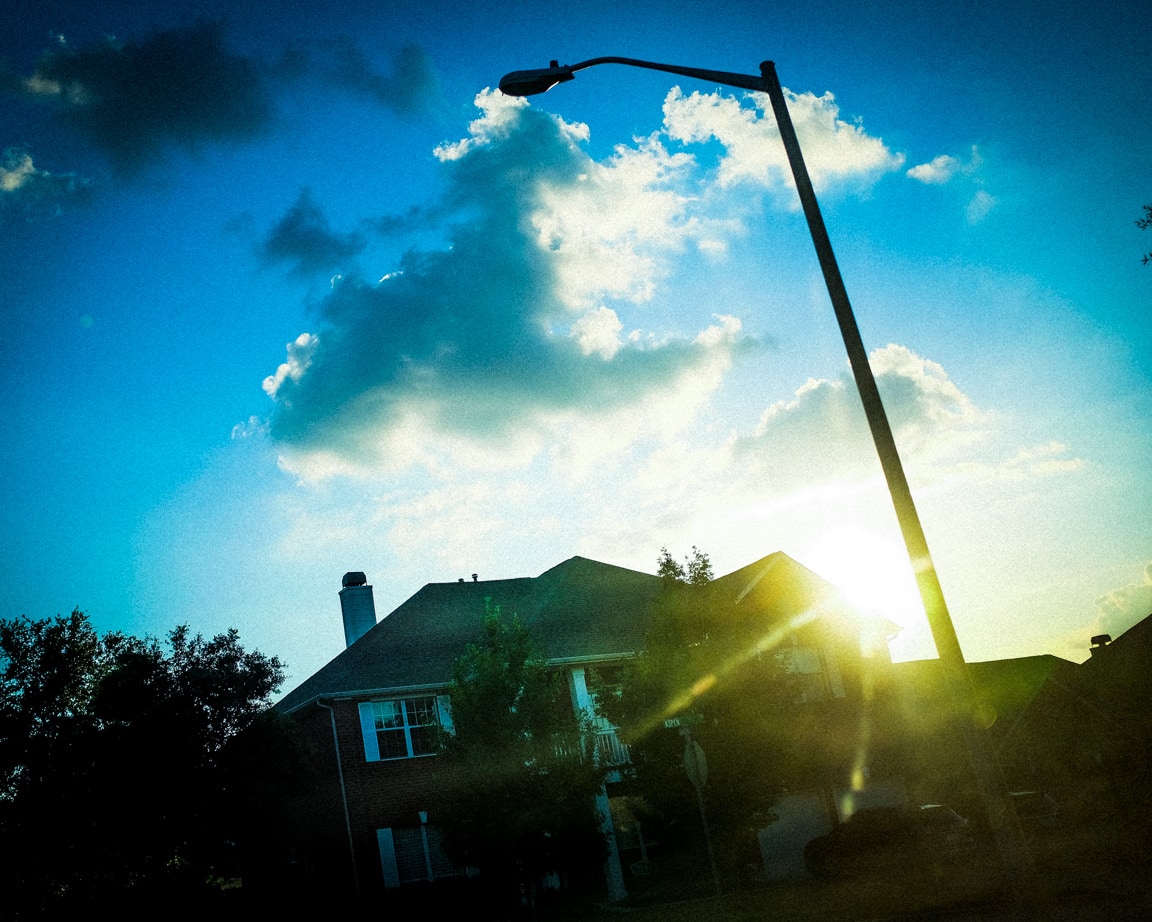
Texas Sunset Edit

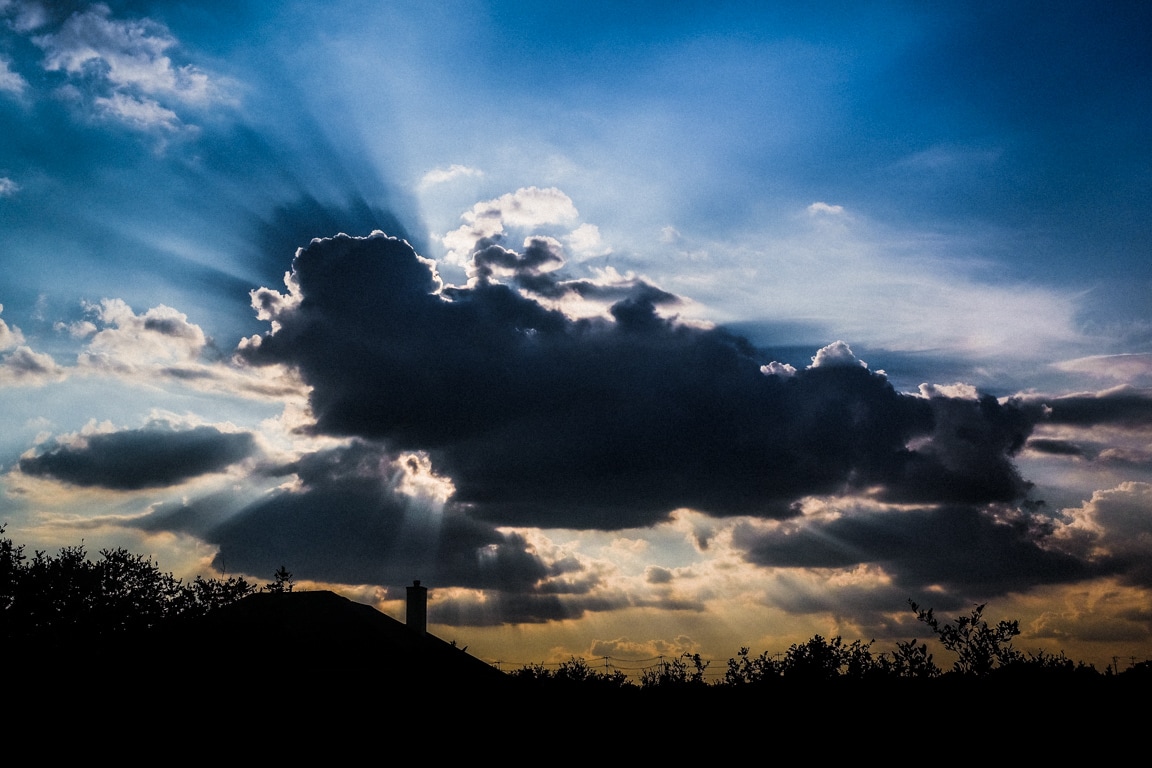
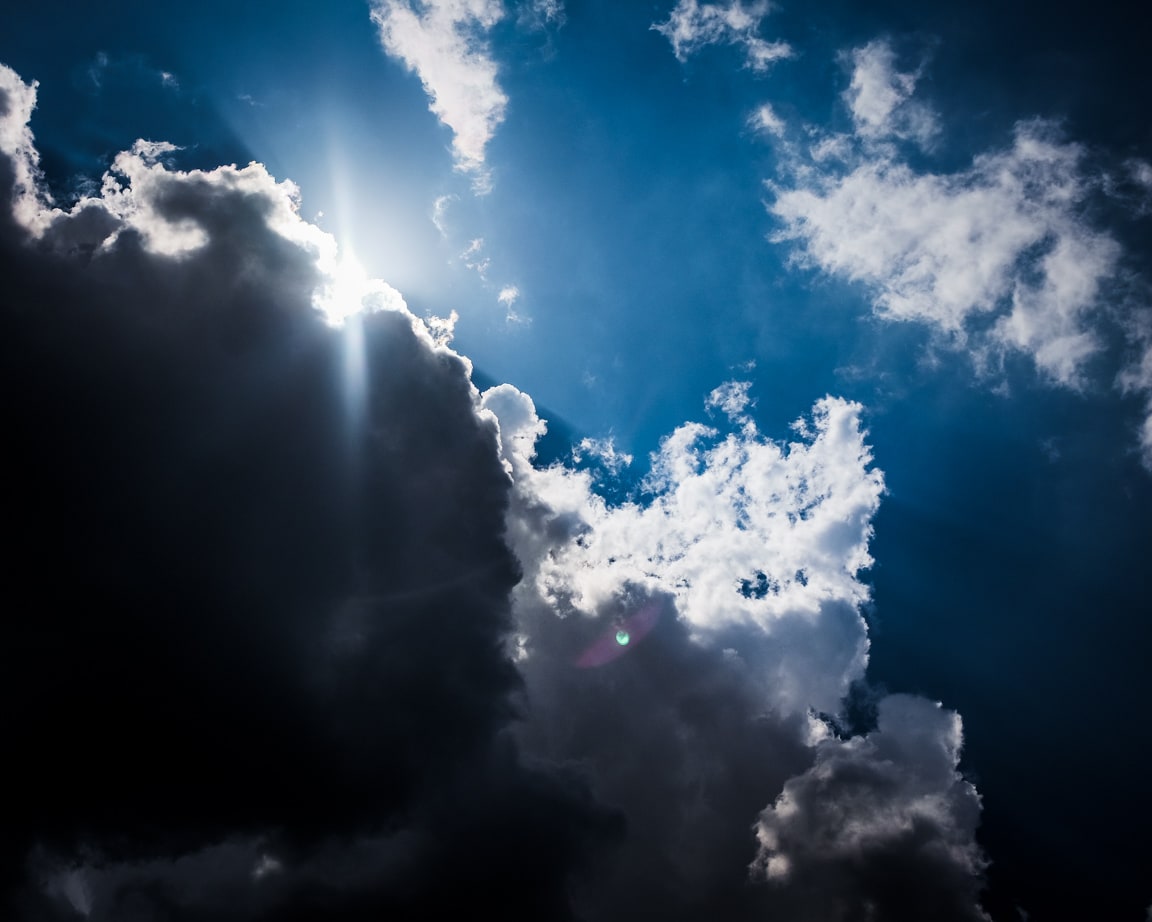
"Texas Sunset" Cedar Park, 2016
Photo info: FUJIFILM X100T, 23mm, f/8, 1/1250 sec, ISO400
“Texas Sunset” Cedar Park, 2016

こんばんは!How’s it going?

This evening I happened to glance outside our window and see some light streaming above a cloud, so I grabbed my camera, ran upstairs and snapped this photo. I used the circular polarizer because I was shooting through a window, but I don’t know if it helped at all. I suppose it could have reduced any reflection, but I wonder if the angle was correct.

At any rate, I got a nice capture and decided to see what I can do in Lightroom. Normally I will import the jpeg and then apply a nice “S-shaped” tone curve, adjust vibrance and saturation, apply some grain and save for upload. But tonight I decided to spend a bit more time to do some more editing.

A fun thing I did was to paint in some selections using the Wacom tablet. First, I painted in some clarity and sharpening around edges of the center clouds to add detail. Secondly, I made a new brush to darken some areas using negative exposure. You can see in the top-right corner, and center-top that I darkened the sky a bit to add more variation. The tablet is so fun to use with Lightroom – I highly recommend getting one!

To add a bit more color, I adjusted the vibrance and saturation, but also added a few linear gradients. There’s one coming up from the bottom added some more warmth with a pale orange color and white-balance shift. Then up in the sky, I added one in the upper-right to add a touch of purple via white balance shift, and in the upper-left, some blue. It’s really fun to add color gradients or white balance edits this way. I did it quite a bit in another photo of mine several months ago.

I think the final image of the cloud is a bit exaggerated, but I like it. I think it could have been even better if there was a jet streaking across the sky leaving a contrail behind, or even a few birds flying in the sky. Just one more element to add more interest.

Anyways, for comparison, here’s the original image:
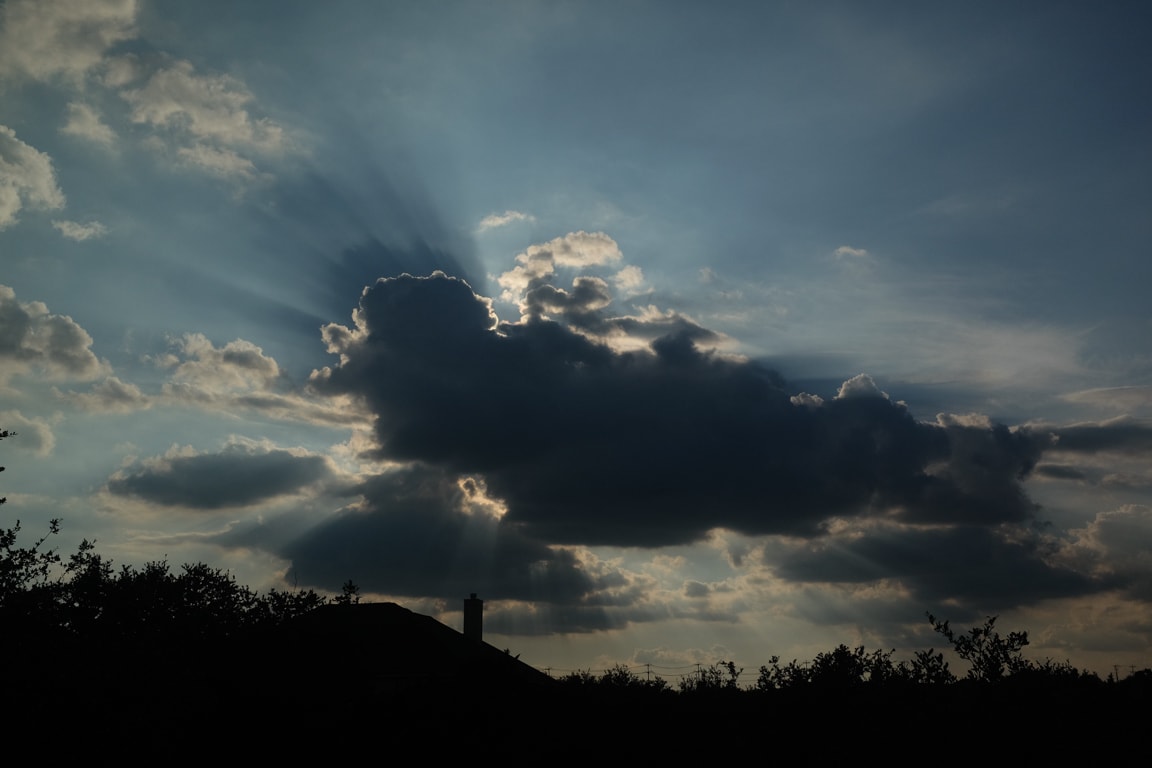
Unedited Photo
Photo info: FUJIFILM X100T, 23mm, f/8, 1/1250 sec, ISO400
Unedited Photo

If you use Lightroom and are curious, I’ve saved all my adjustments to a preset and shared it, along with the original JPEG below. I use Lightroom 5, but the preset probably works with other versions as well. Enjoy!

Get the original image and Lightroom 5 Preset via Google Drive


In other happenings, I was reading about the terrorist attack in Istanbul. How awful… so much violence in the world. 😔 Whenever I turn on the news, there are so many negative things being reported… floods, airplane crashes, hate crimes, etc… I almost would rather hide away from all that. But what can you do but focus on being positive? Teach your kids to be open-minded, respectful, and compassionate, especially when they are young. I guess that is a start.

Anyways, I hope you had some moments of joy today. Even the little things! 😄

おやすみなさい!

– B Barron Fujimoto

Today’s daily prompt from WordPress was coincidentally Clouds! ☁️
Polarizer

"Storm's Coming" Austin, 2016
Photo info: FUJIFILM X100T, 23mm, f/2.8, 1/9000 sec, ISO400
“Storm’s Coming” Austin, 2016

こんばんは!

Tonight’s photo is of (surprise!) another cloud. ☁️ I realize that clouds are one of my favorite subjects to make photos of, so I did a little research on how to make better photos of them.

One thing that people have recommended using is a polarizing filter. Usually this type of filter is used to reduce reflections off of glass or water, but it also gives better definition and contrast to the sky and clouds. I honestly don’t know how much of an effect it will have since I usually do some editing in Lightroom to get the style I like, but since I already own a circular polarizer, I figured, why not?

After buying a step-up ring so that the 55mm filter would fit on the 49mm thread on my X100T, I took a few photos while I was out and about with my son Koa. There were a lot of nice clouds in the sky because of the approaching storm so I took the opportunity to make a few photos.

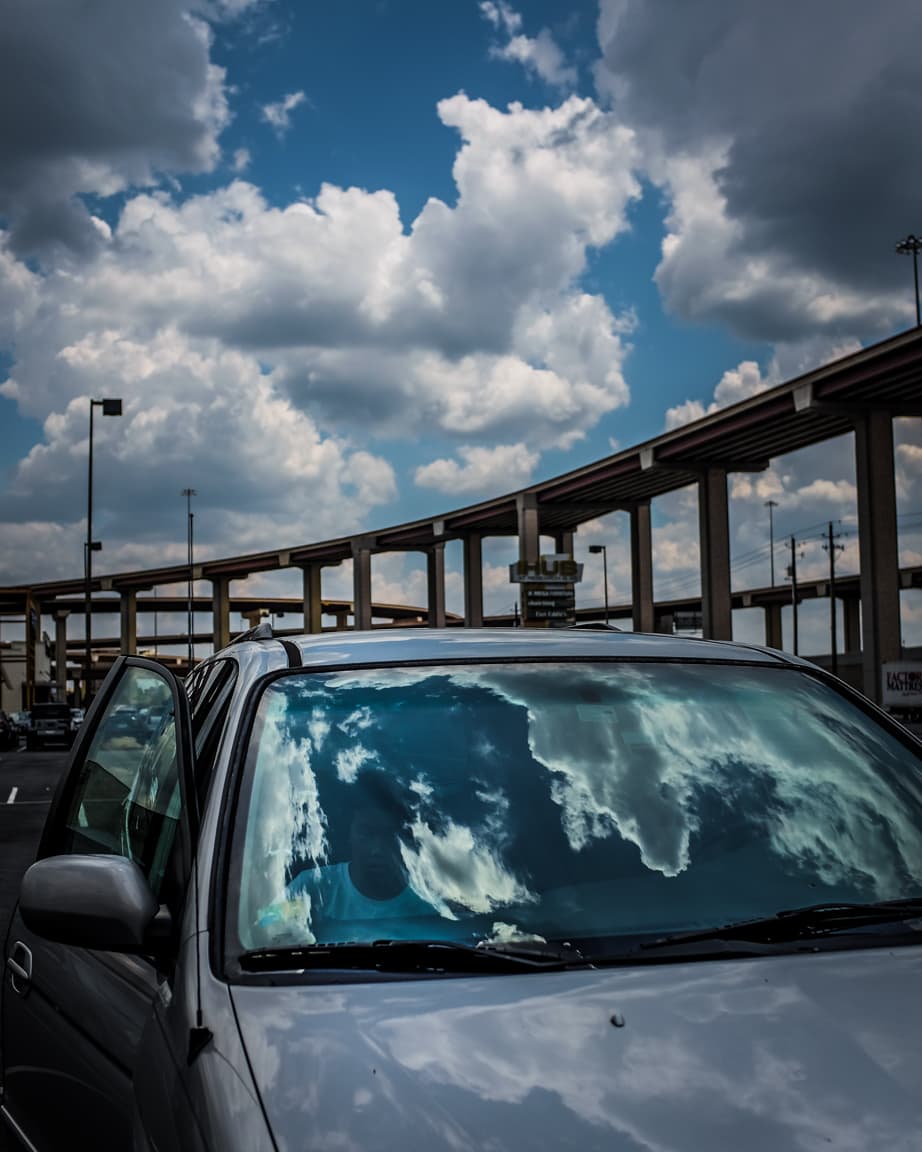
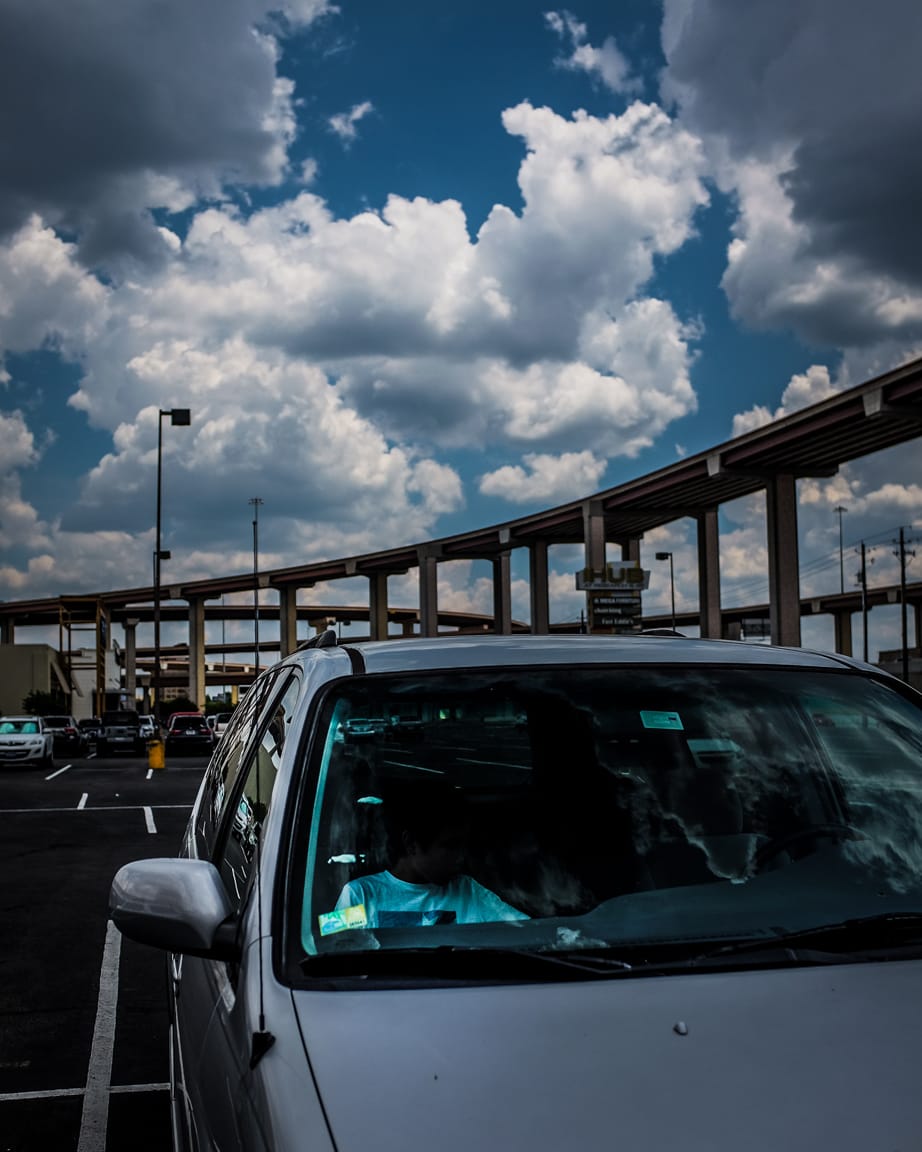
Below you can see how the polarizing filter can cut the reflections out of the photo. The circular polarizer actually rotates so you can dial in how much of an effect you want to achieve. In the photo on the left, I kept a pretty heavy reflection, but for the photo on the right, I rotated the filter and the reflections disappeared like magic! If you click on the photos, you can see that the cloud reflections on the hood of my car were eliminated as well. Pretty slick!

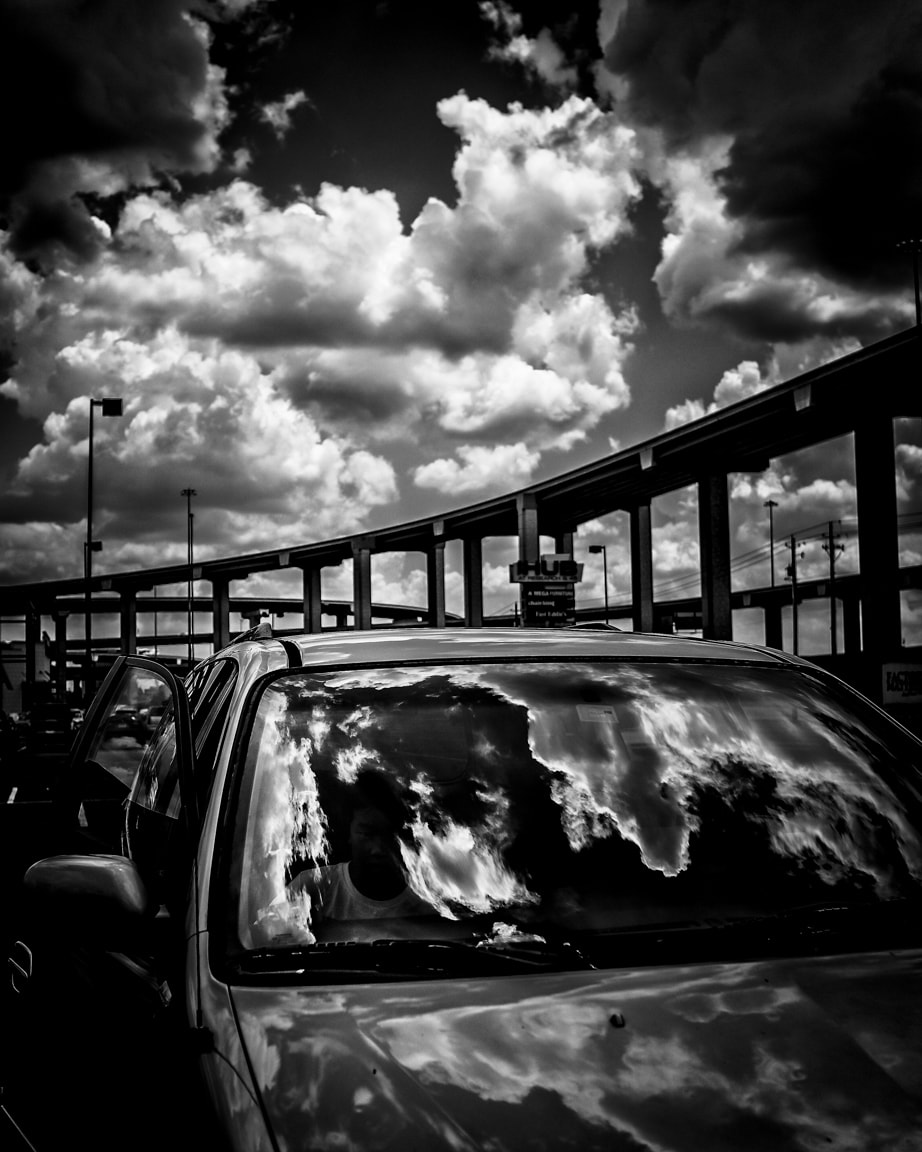
Anyways, I played around with the image in Lightroom and eventually I found the look I wanted, which is the black and white version below. I used Nik Silver Efex Pro2 to convert the color image to black and white.

"Reflection" Austin, 2016
Photo info: FUJIFILM X100T, 23mm, f/2.8, 1/1700 sec, ISO200
“Reflection” Austin, 2016

I hope you had a nice Tuesday! We’re almost over the hump… just one more day and then it’s a straight shot to the long weekend here in the States. 😄

おやすみなさい!

– B Barron Fujimoto

On the way to the cages

"On the Road" Cedar Park, 2016
Photo info: FUJIFILM X100T, 23mm, f/2.5, 1/5400 sec, ISO400
“On the Road” Cedar Park, 2016

こんばんは!How’s it going? Have a good Friday?

This evening, I took Koa (12) to the batting cages to get some hitting practice in. He was a little rusty, not connecting so much at the beginning, but after about 10 minutes he improved and was smacking them with pretty good power. He love baseball so much, both playing and watching pro games on TV. I hope he continues to enjoy it through middle school and even joins the high school baseball team. That would be cool! ⚾️

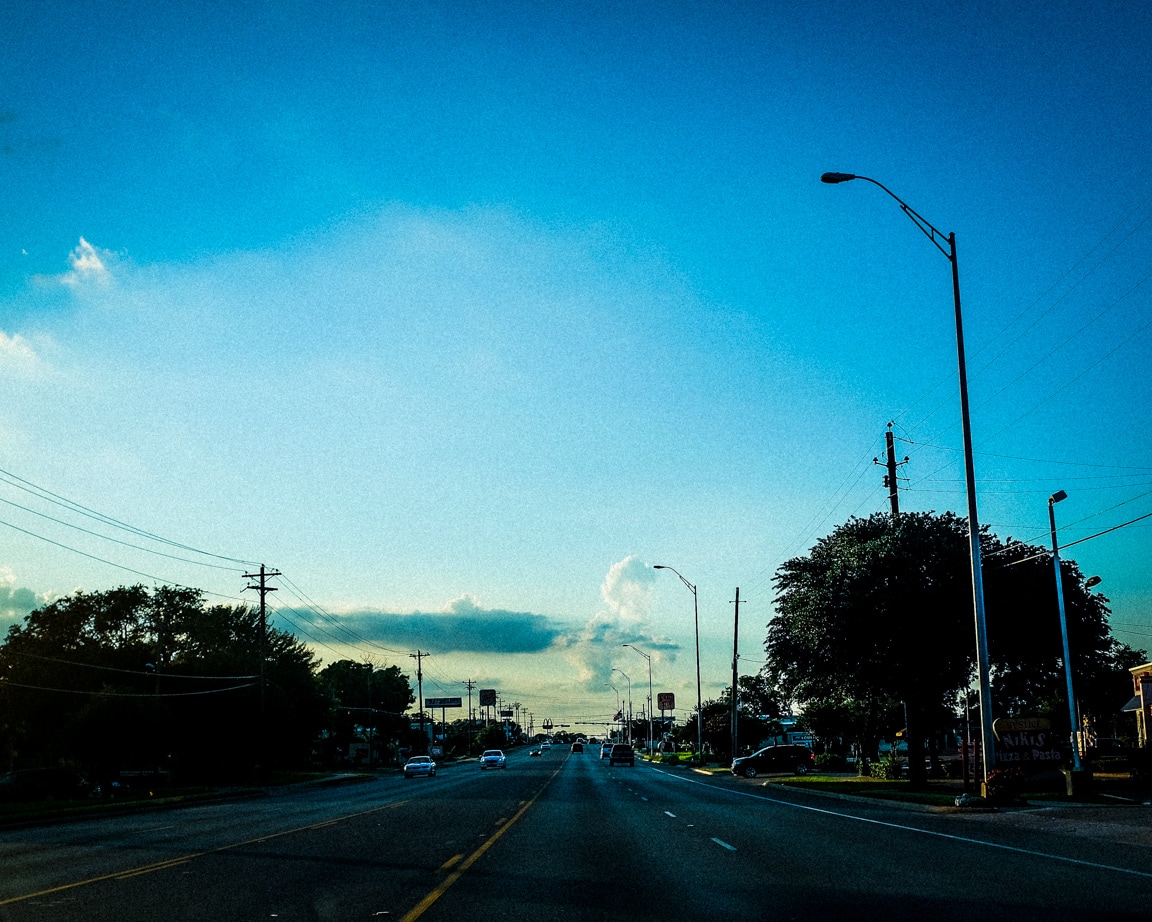
Tonight’s photos were taken on the way to the cages. Before we left, I pre-focused my camera to a distance of maybe 50 feet and left it in M focusing. But I goofed and didn’t stop down the aperture. It was pretty wide at f/2.5 but it still came out in focus for the most part. Of course, I am not looking at the camera while I drive, but just kind of shoot in the general direction. It’s kind of fun to take photos this way, especially on the street. I’ll sometimes set the camera so that the LCD screen is off and just point the camera and snap. Since my X100T is a 35mm equiv. focal length, I have a very good chance of framing it close enough. And with each try, I seem to be getting better.

In Lightroom, I used a preset that I created to get to a good starting point, then I adjusted the exposure and lessened the vignetting a bit. I chose one of my 3 grain presets to give it the look I wanted before exporting.

Here’s another photo I took on that drive to the batting cages. I used similar settings as the first photo.

"Neighborhood Sun" Cedar Park, 2016
Photo info: FUJIFILM X100T, 23mm, f/2.5, 1/5400 sec, ISO400
“Neighborhood Sun” Cedar Park, 2016

Well, I’ll see you tomorrow! For now, I’m going to watch some Japanese dramas before going to bed.

おやすみなさい! – B Barron Fujimoto

Hello, Cloud. And Why I Cull My Photos.

"Saying Hi" Cedar Park, 2016
Photo info: FUJIFILM X100T, 23mm, f/6.4, 1/950 sec, ISO400
“Saying Hi” Cedar Park, 2016

こんばんは!Hello, how’s it going?

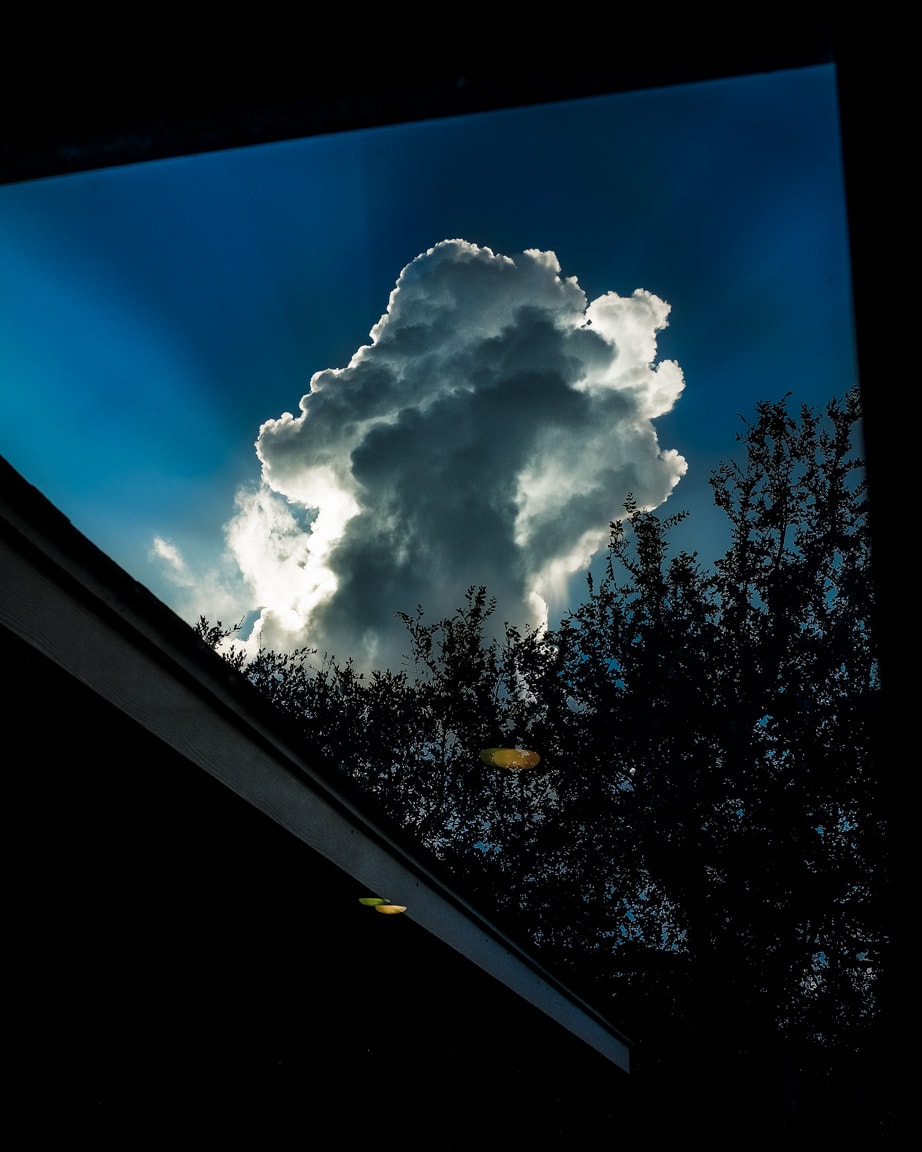
Well, I didn’t expect to take another cloud photo for today’s snapshot, but as I was doing the dishes this evening, this beautiful cumulus specimen appeared over the trees to say hello. I couldn’t pass up the chance, so I shut off the water, grabbed my camera which was in the other room, then came back to the kitchen to take four photos of the cloud. I liked this one the best, and deleted the other three.

I am a big proponent of only keeping the best version of a series of photos if possible. In this case, the other three were simply different views of the same scene, some farther away from the window, and some closer. The photo above was the image that I felt was framed the best by the window, so it became the “keeper” and the other three got the “X” (marked for deletion).

I’ve heard people say that you should never delete any of your photos. Storage is cheap, after all. It doesn’t cost anything extra to keep every single photo you take, right? While this may be true, I personally found that I was paying the price in speed. The large amount of images was bloating my Lightroom catalog and slowing things down.

Conversely, by only keeping one photo from a series of images, my Lightroom catalog is lighter and more responsive. Plus there’s less visual clutter when I scroll through the catalog, or when I browse my images online at photos.google.com. I can scan quickly. I don’t have to wade though a bunch of mediocre versions of the same subject (and believe me when I say that I capture a TON of mediocre images!).

For me, it’s important to cull the photos soon after Iimport them into Lightroom or copy them to my computer. (I even try to delete photos before that in-camera) The quicker I get rid of those photos, the less time they have to make an imprint in my mind. I believe everything takes a portion of the brain’s attention, even a tiny bit of my subconscious. So, once the photos cease to exist, it frees that part of my brain’s hard drive, as well as my computer’s hard drive. At least that is what I believe. 😌

When I first began culling my photos, it wasn’t easy to delete photos. Yes, I was a digital hoarder at the time! But one thing that helped me was to imagine that my Lightroom catalog was a slideshow that I would be presenting to an audience. Would I want to show them 4 pictures of the same cloud? No way. They would get bored (and annoyed) quickly. I would pick the best photo to show them, and respect their time and attention. So why wouldn’t I treat myself with the same respect?

Once I got comfortable with culling quickly, it became easy, and it actually became fun! Making decisions and not looking back or regretting my actions gave me a sense of control. It won’t change the world, but it did affect the way I felt. Plus, once you start decluttering, it just snowballs and it feels great!

Okay, I seem to have rambled on a bit (again). So, back to the photo at hand…

For the Lightroom edit, it was similar to my previous post’s photo, with the addition of selective white balance. I gave the cloud a warmer tone, and the sky a cooler tone. That’s it! I’d estimate that I spent about 4 minutes in Lightroom before exporting.

I hope you had a nice day today. Let’s have a great Friday to close out the work week!

As always, if you have a comment or question, let me know.

おやすみなさい! – B Barron Fujimoto

Clouds and My Post-Processing

"Cloud" Austin, 2016
Photo info: FUJIFILM X100T, 23mm, f/10, 1/1100 sec, ISO200
“Cloud” Austin, 2016

こんばんは!

For the past week or so, we’ve been fortunate to have some amazing-looking clouds in the skies here above Austin. ☁️☁️☁️ And of course, I’ve been taking many pictures of them!

The photo above was taken from my car while I was on my way home from work. (Don’t worry, I was stopped at the light) The sky was very bright, with the sun behind the cloud, but the camera was able to capture most of the details. I keep the exposure compensation dial set to underexpose by 1/3 to 2/3 of a stop because I would rather keep my highlights intact and don’t worry about clipping the shadows. In fact, during post-processing, I will often let the left-side of the histogram go full black. I guess I like that high-contrast, richness on the darker side.

As you can see, the image is not very realistic, but I am not really going for capturing reality. I love that there is so much detail in the center of the clouds which you really cannot see with the naked eye. Why not bring it out in the photo? Of course the photo started off as a picture of a real cloud, but I’ve edited it into a version of the cloud as I would like to see it.

There is has been a lot of discussion in the photo blogosphere about Steve McCurry photoshopping his images, with some people feeling betrayed or tricked because of the edits. But I am not bothered by the photo manipulation. If you are creating art, then go for it! If you are documenting real-life, then don’t edit. That’s fine too. But be honest and don’t deceive people. If someone asks me if my photo has been edited, I’m more than happy to explain exactly what I edited. That’s part of the process.

Even as I take photos of everyday life, I will do some amount of editing. That happens before I even press the shutter button since I have already chosen my film simulation and highlight, shadow, and sharpness settings.

For my post-processing in Lightroom (version 5x), here are the steps I typically follow:

  1. Level and/or “upright” – I will use the level tool in the cropping area to make sure horizons are level, and for architectural photos, I’ll use the Upright tool in the Lens Correction section. I didn’t do this step for the cloud photo, however.
  2. Crop – My preferred aspect ratio these days is 4×5, but this photo was taken square in-camera.
  3. Remove dust, distracting smudges, or dirt – Spot removal tool. I didn’t need to for this photo.
  4. Adjust white balance – Using the eyedropper as a start. Typically only needed for indoor shots.
  5. Adjust tone-curve – I have saved a preset, a gentle S-curve, which adds contrast.
  6. Tweak the exposure – Exposure, highlights, shadows, whites, and blacks sliders.
  7. Adjust color – Vibrance, saturation, HSL. For this image, I brought the saturation down a bit.
  8. Add grain and/or a vignette – Just a vignette for this image, albeit a strong one. I used a combination of Vignette in the Effects section, and then a few graduated filters with lower exposure.
  9. Export – Resizing and saving for blog, Flickr, and Instagram.

Nine steps looks like a lot, but I can usually get through them in less than 3 minutes. I try to spend as little time in Lightroom as possible!

Well, this blog post kind of grew, didn’t it? 😝

I hope you had a nice Wednesday, and let’s have a great Thursday!

おやすみなさい! – B Barron Fujimoto